Busy mornings
Take new patient details while your team helps people at the desk.
Our dental answering service answers as your office, takes messages and handles appointment requests when calls forward to it. Try a fictional patient call in the browser demo, then request a free trial; we email your sign-in link when your trial is ready.
Give callers an answer during lunch, after closing and while your front desk is helping patients.
Talk to the receptionist Request your free trial
Free trial on request: 14 days, up to 100 minutes. PrivacySecurity

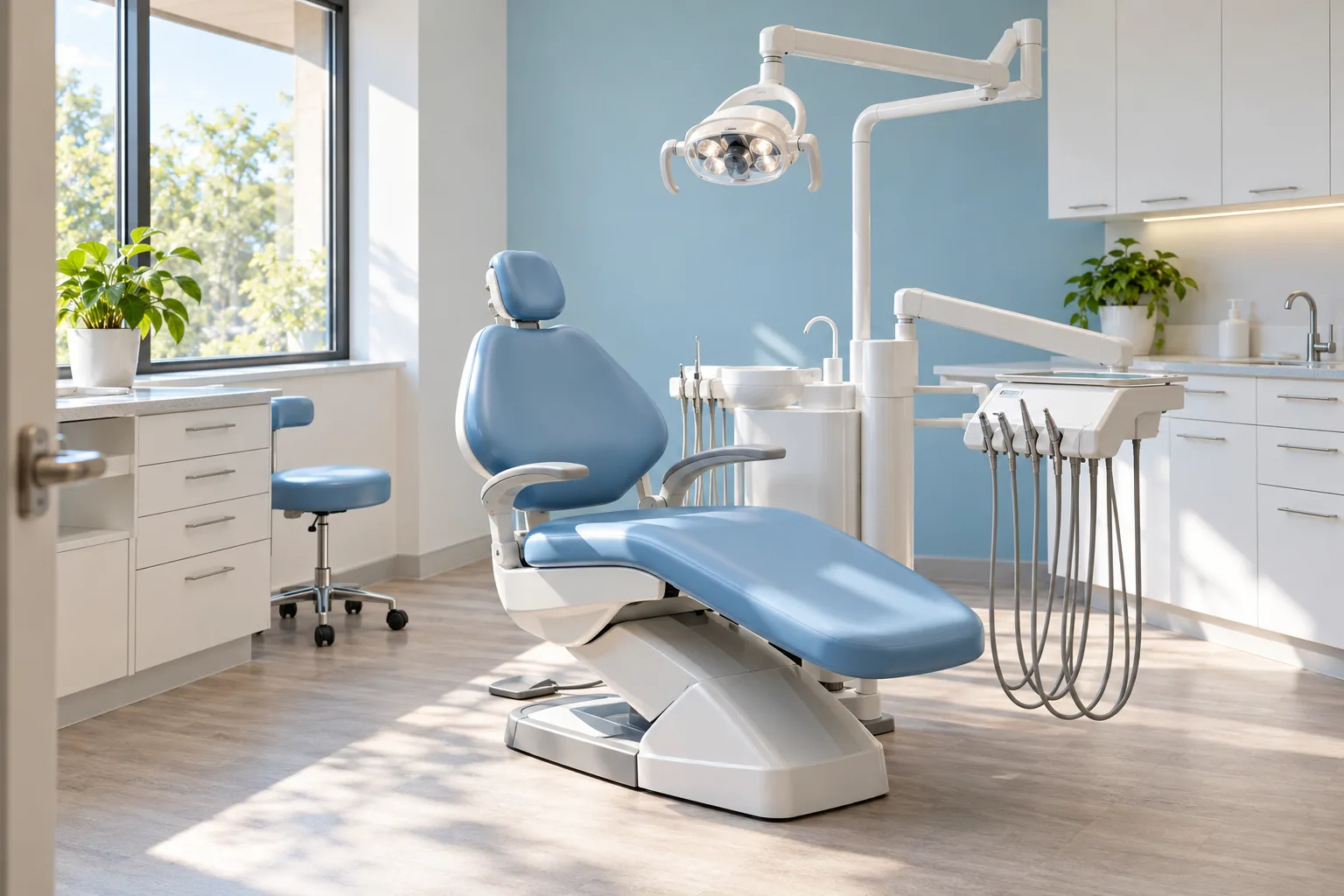
An unanswered call can leave an appointment request waiting or send a new patient looking elsewhere. Your receptionist gives that caller a way to explain what they need while your team is occupied with people in the office.
Consider a fictional caller, Maya, who wants to move a cleaning during your lunch hour. Instead of leaving an unexplained missed number, she can give her name, callback details and request. Your team gets a message it can act on. Choose no-answer, busy or after-hours forwarding to match the gaps you want covered. Call answering supports your front desk; clinical questions still belong with your clinician.
Your AI receptionist gathers front-desk information and uses the office instructions you provide. A new patient can ask about appointments, an existing patient can request a callback, and an insurance question can be written down for your team.
The greeting identifies the receptionist as a virtual assistant and tells the caller the call is recorded. It can book into Google Calendar or collect details for your callback. Urgency flags support routing, not clinical triage. The receptionist does not diagnose or give treatment advice. For facial swelling with trouble breathing or swallowing, it tells the caller to go to the ER or call 911 now, then alerts your office.
Practice business (made up): Brightwater Dental
Pick a call, then press Start talking.
New message for Brightwater Dental
Broken tooth on a Saturday.
Took a message for the practice and saved the caller number.
Short transcript (example)
You get the full transcript and recording in the dashboard.
Example of what the owner receives after a call like this.
New message for Brightwater Dental
Broken tooth on a Saturday.
Took a message for the practice and saved the caller number.
Short transcript (example)
You get the full transcript and recording in the dashboard.
New message for Brightwater Dental
New patient with an insurance question.
Took a message for the practice and saved the caller number.
Short transcript (example)
You get the full transcript and recording in the dashboard.
New message for Brightwater Dental
Recall cleaning booking.
Booked for Monday, 2 to 4 p.m. (example time). Confirmation is in the summary.
Short transcript (example)
You get the full transcript and recording in the dashboard.
New message for Brightwater Dental
Facial swelling with trouble breathing.
Said to call 911 or go to the ER now. On-call clinician alerted.
Short transcript (example)
You get the full transcript and recording in the dashboard.
New message for Brightwater Dental
Reschedule during lunch hour.
Booked for Monday, 2 to 4 p.m. (example time). Confirmation is in the summary.
Short transcript (example)
You get the full transcript and recording in the dashboard.
New message for Brightwater Dental
Spanish-speaking patient.
Took a message for the practice and saved the caller number.
Short transcript (example)
You get the full transcript and recording in the dashboard.
Try a recall cleaning or lunch-hour reschedule and listen to the intake.
Ask an insurance question and hear it recorded for the dental team.
Test the emergency script or switch between English and Spanish mid-call.
The fictional demo office lets you test six situations without using a real patient's information. Start with a broken tooth on a Saturday, a new patient asking about insurance, or a recall cleaning booking. Notice which details the receptionist asks for and which questions it leaves for the office.
Then try facial swelling with trouble breathing, a reschedule during lunch, or a Spanish-speaking patient. In the swelling scenario, listen for the ER or 911 instruction before the office alert. For the other calls, check whether the message captures the request clearly. Open all six dental demo scenarios to compare the conversation with the summary, transcript and recording.
You keep your business phone number and choose when calls forward to your receptionist. We provide a local number and a forwarding guide for your carrier or phone system. During onboarding, your answers and website give the AI its office information.
When a call arrives, the receptionist follows that information to take a message, book into Google Calendar or reach your on-call person. A warm transfer gives that person a short summary before they press 1 to accept. You receive an email and app push notification for each call, plus a daily digest email. See the forwarding and setup process before choosing your coverage.
Choose an answering service for dental office calls by testing the handoff your team will receive. With our AI, you can hear the questions, review the summary and test how your on-call instructions work. That makes defined front-desk tasks a practical place to begin.
A live answering service offers a person on the call, which can matter when a conversation needs judgment or reassurance. Ask the provider to show its dental intake process. Voicemail can suit offices that want callers to leave a message for a later response. It leaves the questioning and clarification to your callback. Whatever you choose, clinical decisions should stay with your dental team.
A call's cost depends on both the charging model and the work left for your team. For our plan, look at AI minutes used across the month rather than assuming each call takes the same amount of time. Your dashboard shows usage alongside the calls.
For live answering, ask for the provider's billing units and what its quoted coverage includes. For a part-time hire, assess the scheduled time and duties you need covered. With voicemail, account for the callback needed to gather missing details. Our plan and trial details explain the subscription, included minutes and extra usage. Compare the finished handoff as well as the bill.
The plan
$399 per month
Case-study price: $199 per month, locked for 12 months, for 10 businesses that agree to a short case study about their results.
Request your free trialExtras
Your team handles the step between the call summary and your practice records. Dentrix, Eaglesoft, Open Dental, Curve Dental, Denticon and NexHealth have no direct connection to our receptionist at launch. We send the information for your team to enter, and direct connections are planned by demand.
For appointments, choose Google Calendar booking or have the receptionist take details for a callback. Do not plan around it reading your practice-management schedule. A dental office answering service needs to fit the way your staff actually works, including the time needed to review messages. Read our current software connection status before setting your booking instructions.
Setup starts with an email sign-in link and an onboarding chat of 10 to 15 questions. Tell the AI about your office and point it to your website. Include your hours, services, price policy and who should receive urgent calls.
Choose Google Calendar booking or callback intake, then use the forwarding guide for your phone system. A card is required before forwarding goes live. Make a test call to check the virtual-assistant and recording notices, the questions asked and the message your team receives. You can change settings by telling the AI in plain words. Request a free trial for your office; we email your sign-in link when your trial is ready.
Ask a prospective provider to walk through an ordinary booking request and a call that belongs with the on-call clinician. Check what information reaches the office, how the clinician is contacted and what happens when the receptionist lacks an answer. Ask how you change instructions after setup.
For our service, the HIPAA position is the pending status (no business associate agreement is in place). Until that status is set, the service must not be used with protected health information. Use fictional details in the demo and inspect the result yourself. Also ask about recording retention, extra usage and where calls go if a plan lapses. These questions help you choose a service your team can operate day to day.
Yes. Your receptionist opens each call by saying it is a virtual assistant and that the call is recorded. That notice stays on. The browser demo lets you hear the greeting before you decide whether the call experience suits your office.
Yes. You keep your existing business number and forward calls to the local number we provide. Choose all calls or only no-answer, busy or after-hours calls. We supply a guide for your carrier or phone system and include a test call before launch.
It can book appointments, including recall cleanings, into Google Calendar or take a request for your team to call back. It does not read your practice-management schedule through a direct connection. Set the booking approach during onboarding so the next step matches your office's workflow.
No. It notes insurance and benefits questions for your team without verifying coverage or quoting what an insurer pays. A fictional demo caller can ask an insurance question so you can inspect how the request appears in the office summary.
It follows your office's routing instructions to reach the on-call clinician by warm transfer or page. It makes no diagnosis or clinical triage decision. For facial swelling with trouble breathing or swallowing, it tells the caller to go to the ER or call 911 now, then alerts your office.
Each call produces an email and app push alert with a summary, urgency tag, transcript and recording. A daily digest email brings calls together for review. Your dashboard also holds call records, usage and settings so your team can review the conversation behind a message.
Yes. Your receptionist speaks English and Spanish, and a caller can switch languages during the call. Try the fictional Spanish-speaking patient scenario in the demo to hear the conversation and check the details captured for the office before setting up your own receptionist.
It takes the question and callback details for your team rather than supplying information your office has not provided. Clinical questions belong with your clinician, and insurance questions stay with the team. Review the message and update your receptionist's office instructions in plain words when needed.
Try a fictional patient request and inspect the message it produces. Then request a free trial by email; we email your sign-in link when your trial is ready to set your office information and call routing.